
How do I place an order (on Mobile)?Updated 3 months ago
In order for you to be able to place your first order with us, you need to create a free account.
*Note for International Orders: Once you get to the shopping page, first, select your country's flag from the list by tapping on the American flag in the top right corner. Then you can proceed with the directions below.
To create your free account and place an order:
Step 1: Add product to your cart
- Go to the website you were referred to. From the landing page, tap the Menu button (☰) in the top right-hand corner of the screen to open the navigation menu.

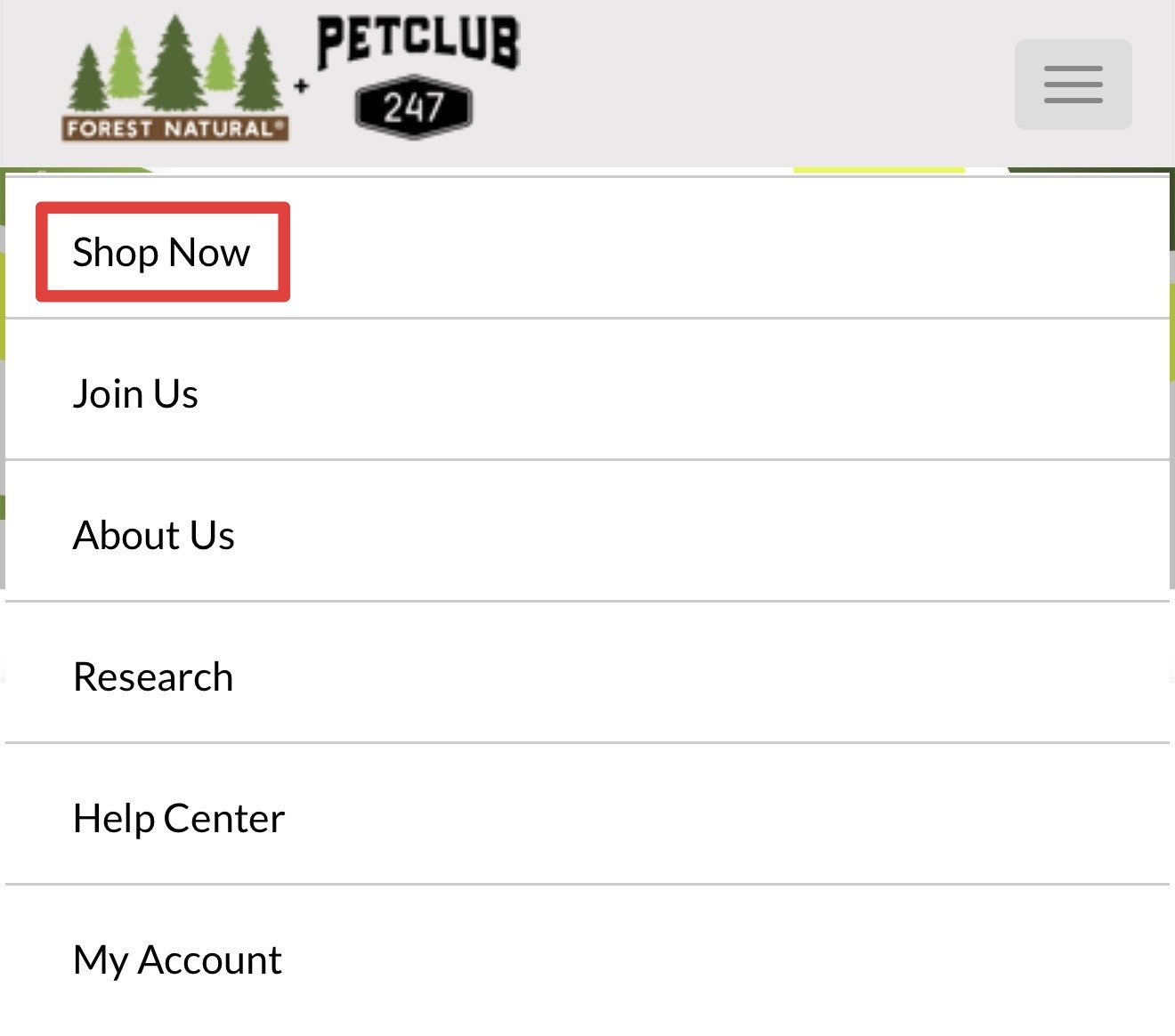
- From the menu that appears, select "Shop Now" to access the shopping page.
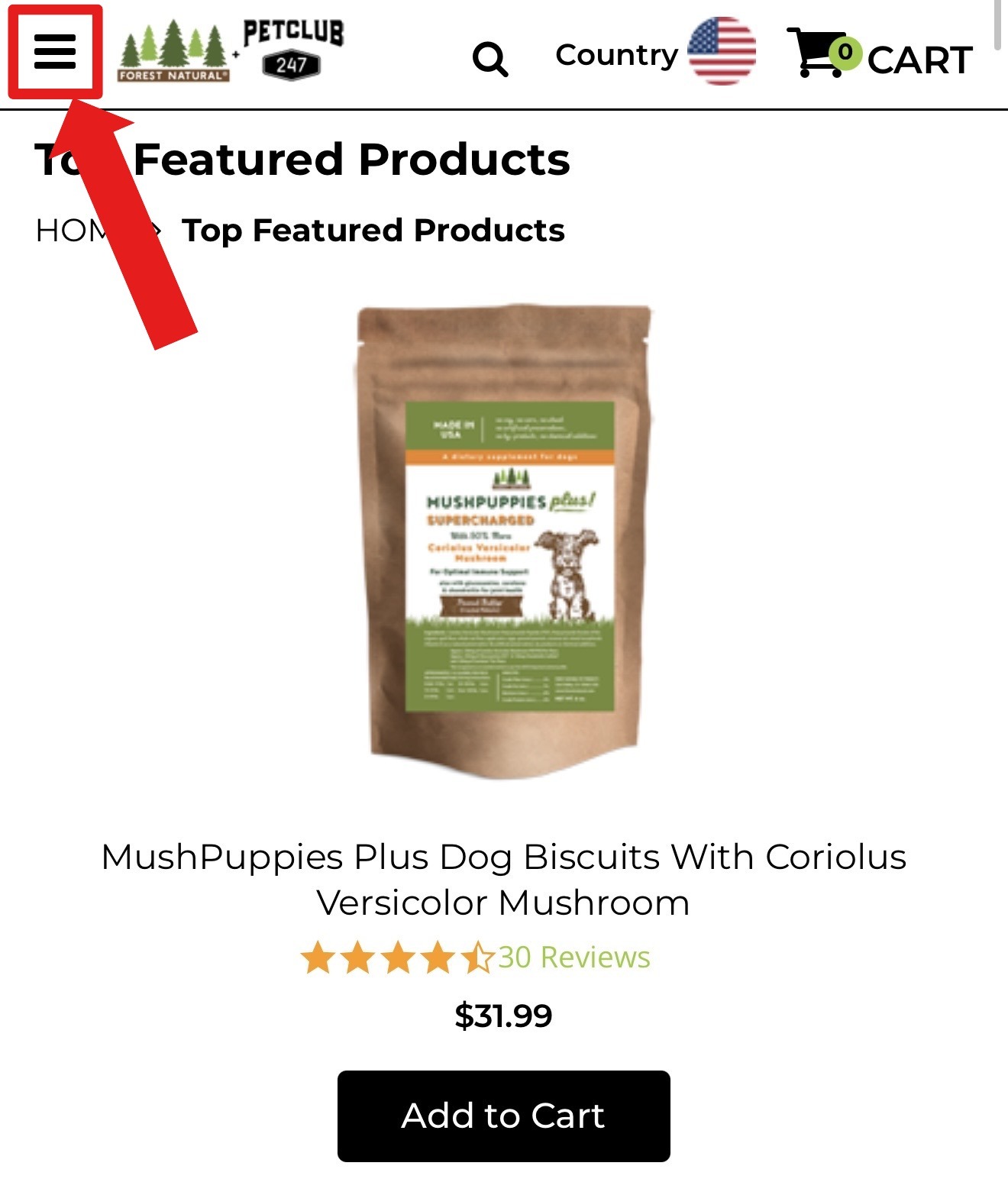
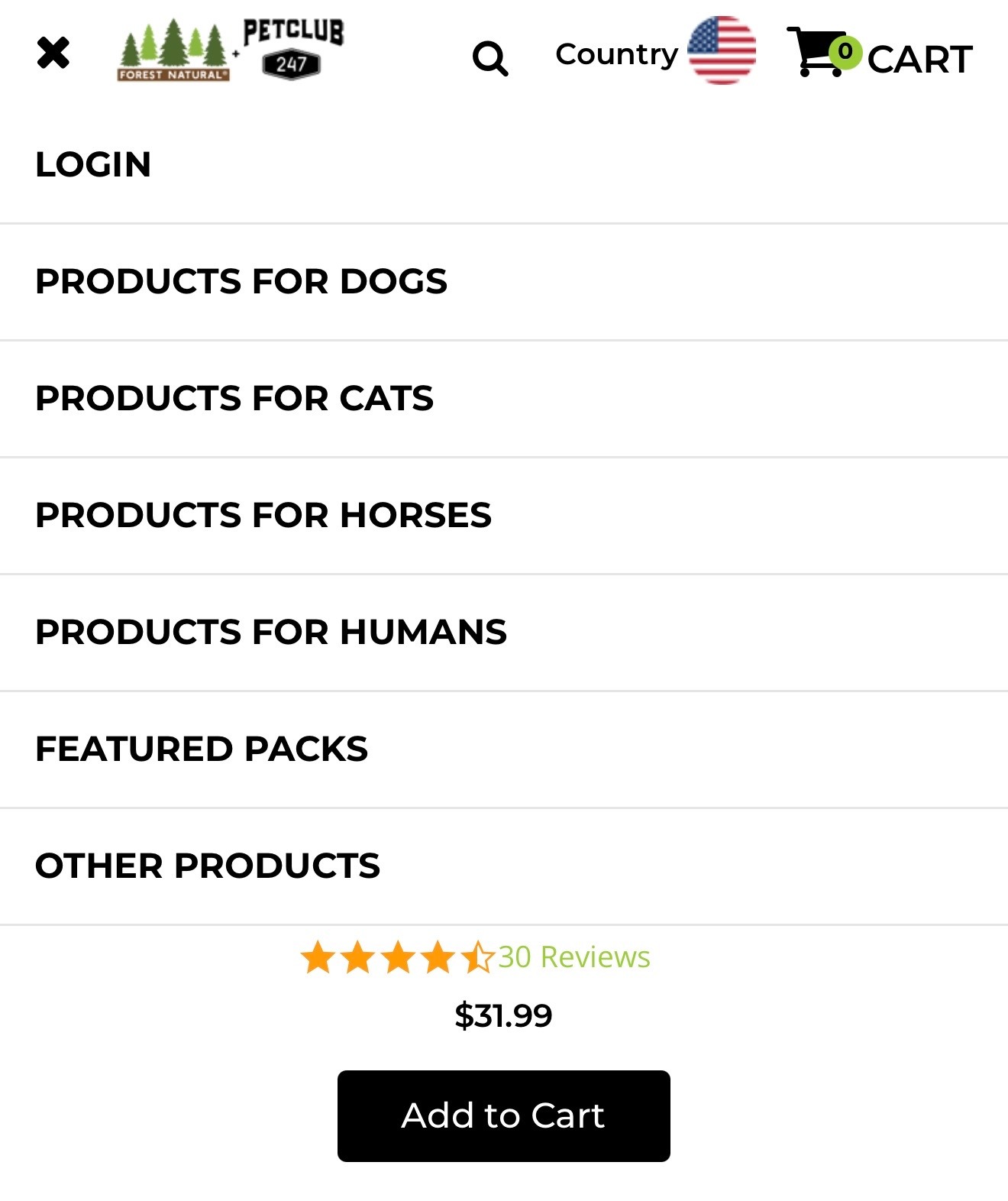
- Tap the Menu button again (☰) at the top left, to choose the category you are interested in: Dogs, Cats, Horses, or Humans.
- Select the item you are interested in (Example, see below):

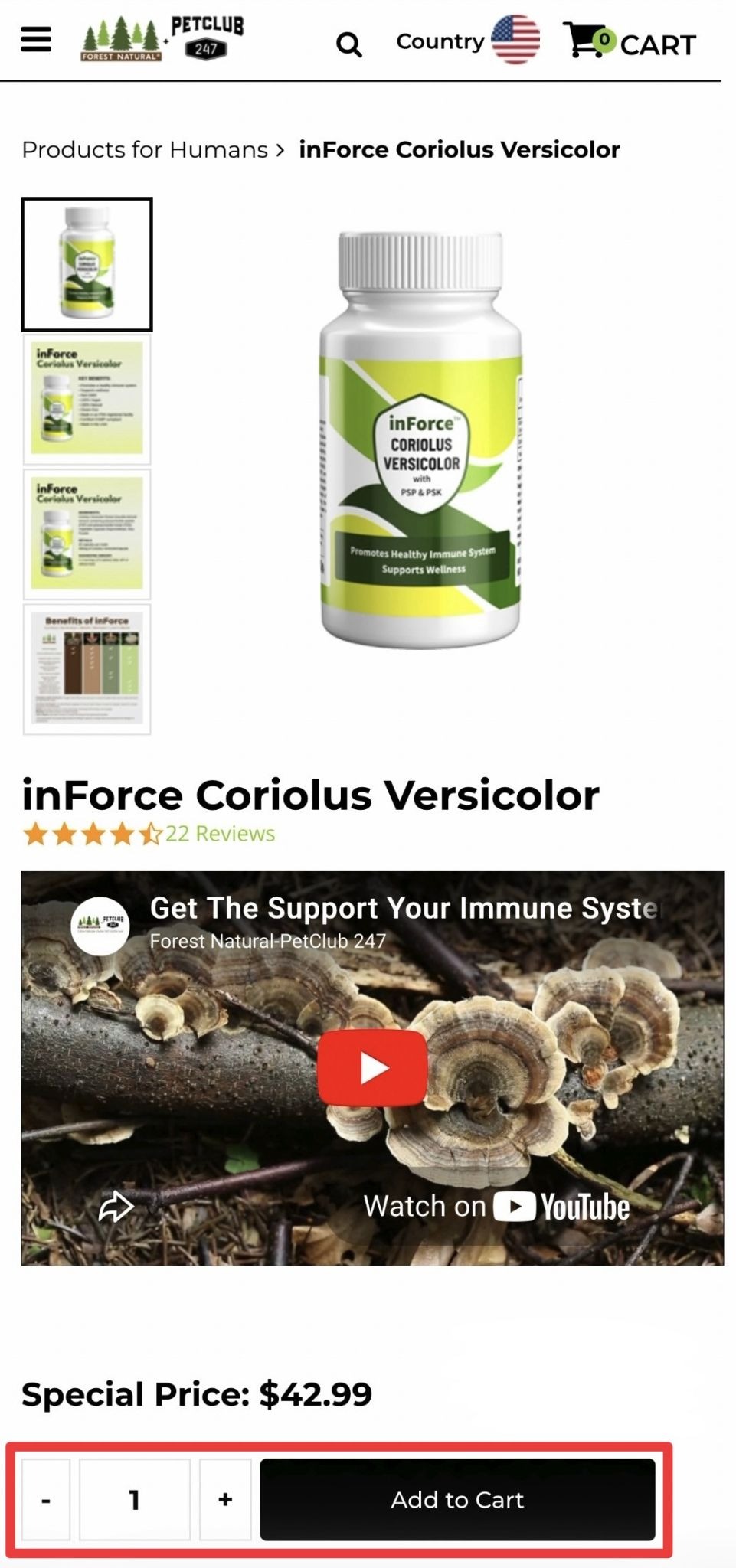
- On the product page, choose the quantity you would like to purchase, then tap "Add to Cart."
Step 2: Go to "Checkout" and create account
- Once you have added all desired items to your cart, tap the cart icon and select "Checkout."
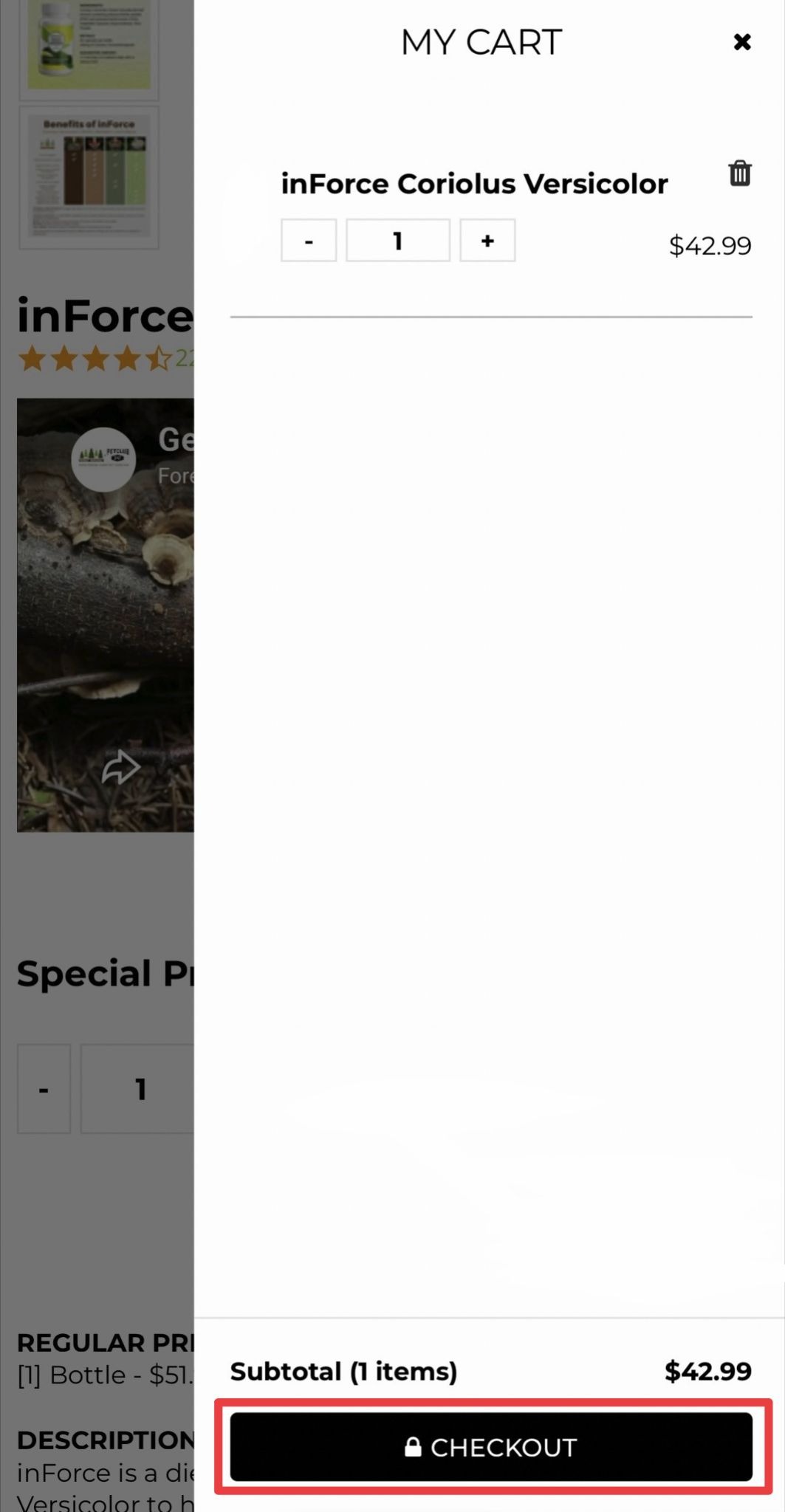
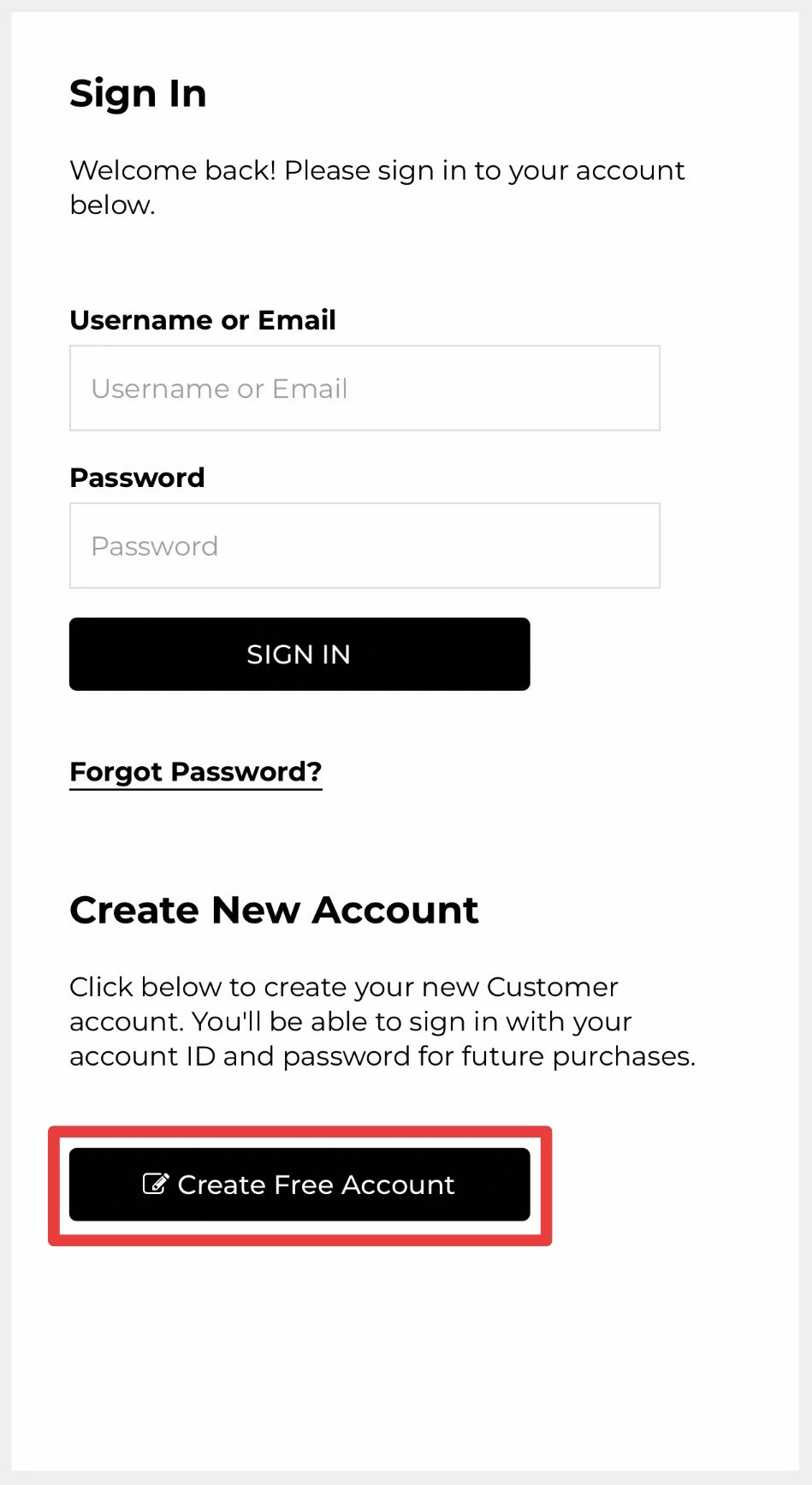
The system will bring you to a sign-in page. Scroll down to find the option to create an account.
- Select the black button that says “Create Free Account" if this is your first order, otherwise, sign in to your account from here. (see below)
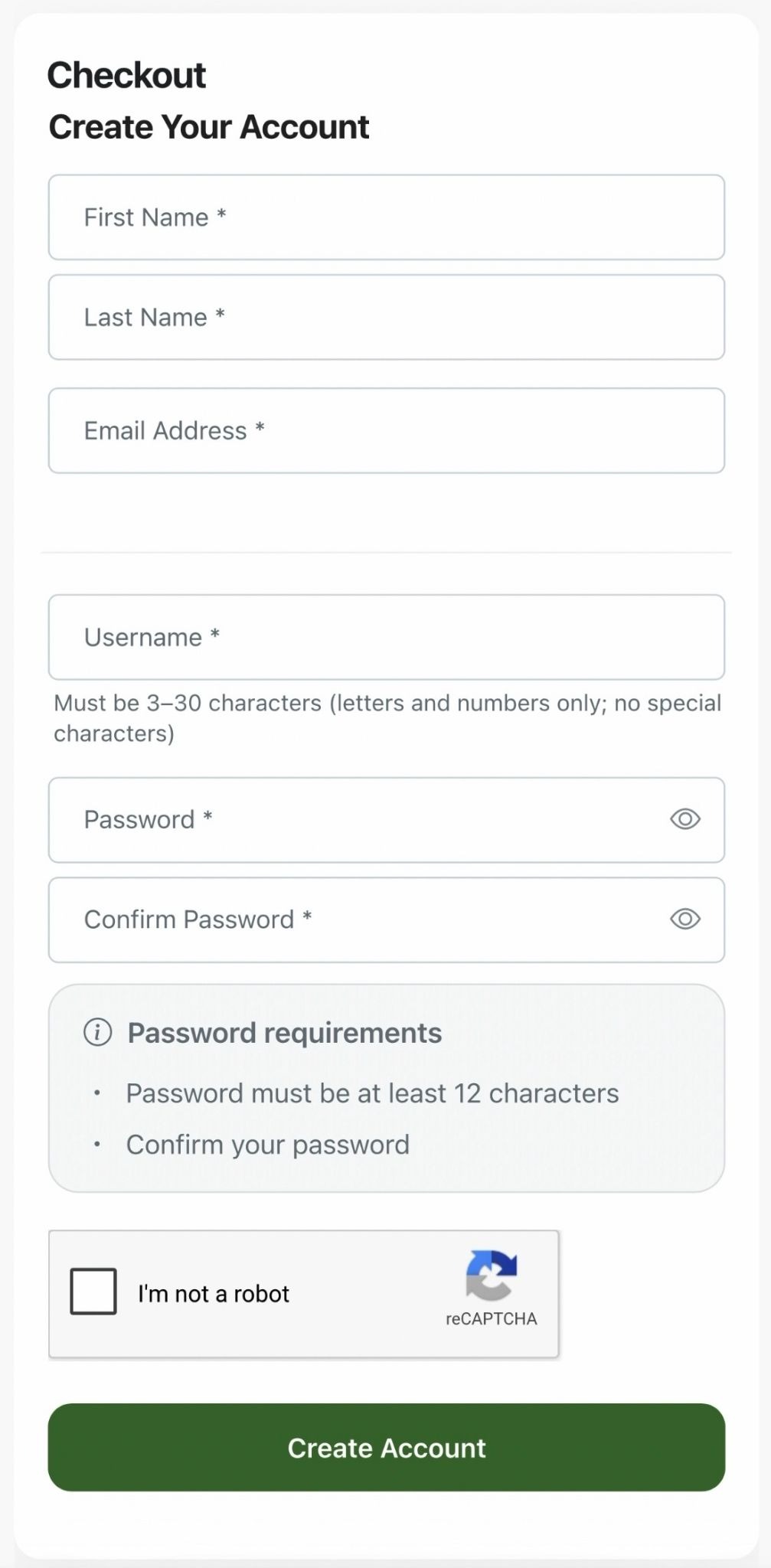
- On the next page (see below), input your information and create a username and password.
Please note: No characters or symbols are allowed for usernames. Letters and numbers only. Our system will revert any uppercase in your username to lowercase and is not case sensitive.
Step 3: Enter your shipping and billing info
- On the next page (see below), to enter your shipping address, tap on the '+ Ship to a New Address' button to bring up the address fields.

- Enter the required information in the fields that appeared (see below):
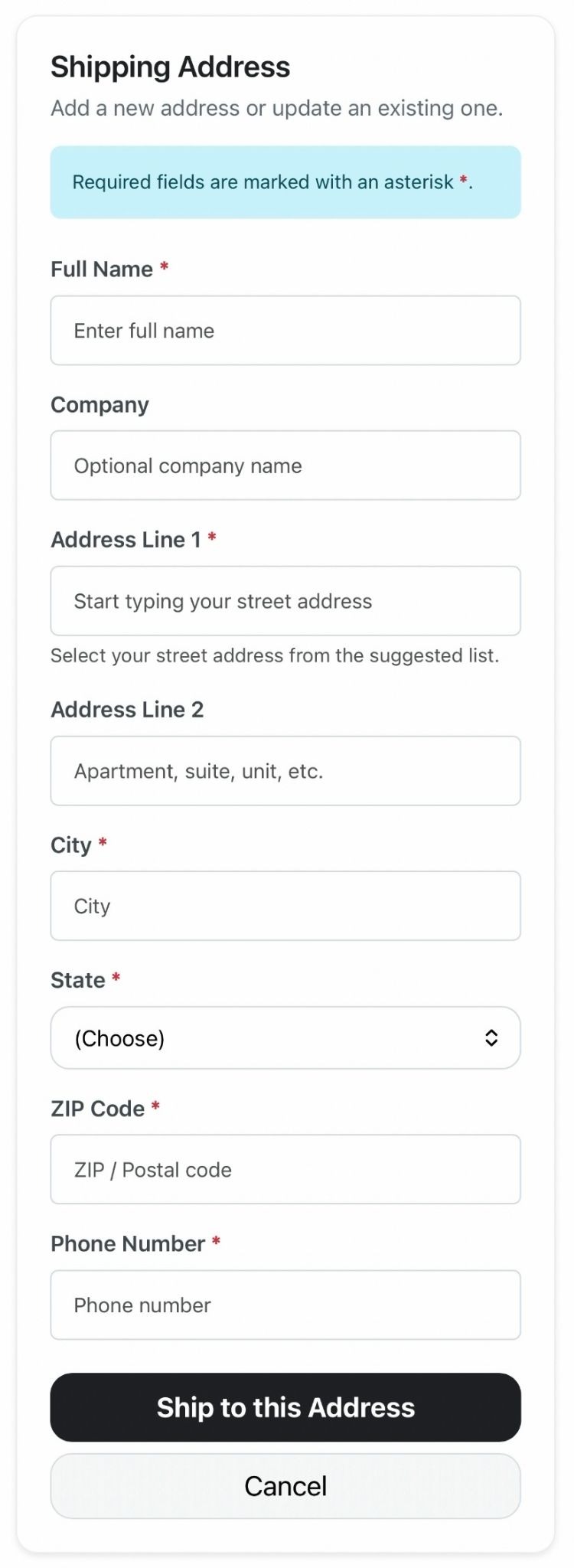
Please double-check that your address is correct!!
- Select “Ship to this Address”.
- On the next page (see below), select 'Add a new card' 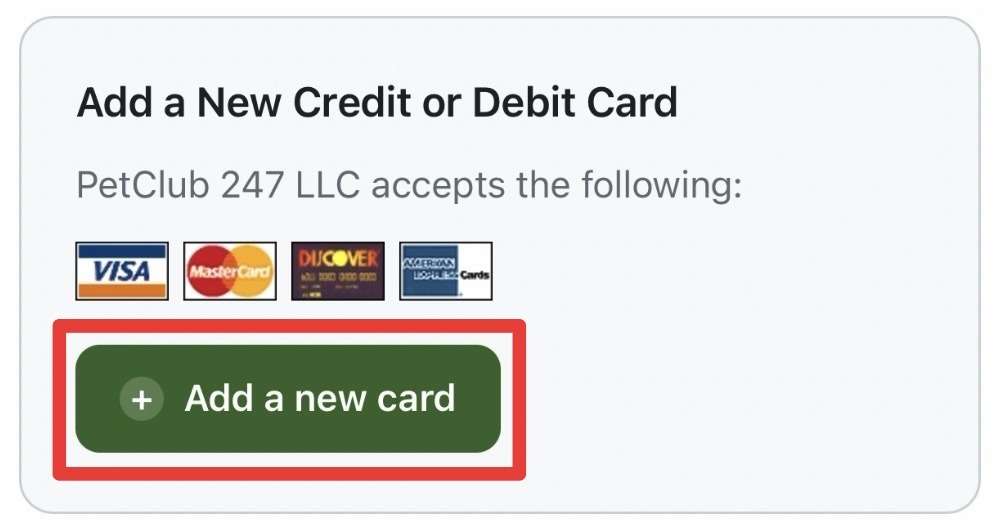
- Input your information in the fields that appear (see below).
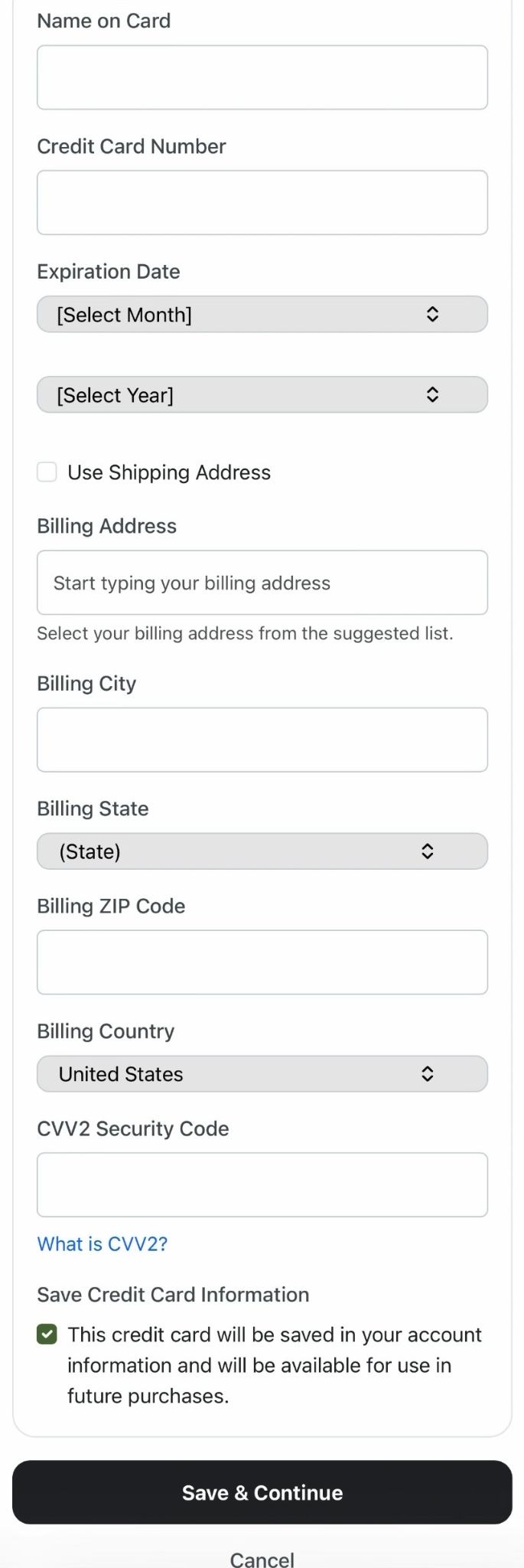
- If you would like to store your card info in your E-Secure account for future use and avoid entering your card details again in the future, keep the checkbox at the bottom under "Save Credit Card Information" selected. Otherwise, unselect the checkbox and tap Continue.
Step 4: Select or skip Smartship (Autoship)
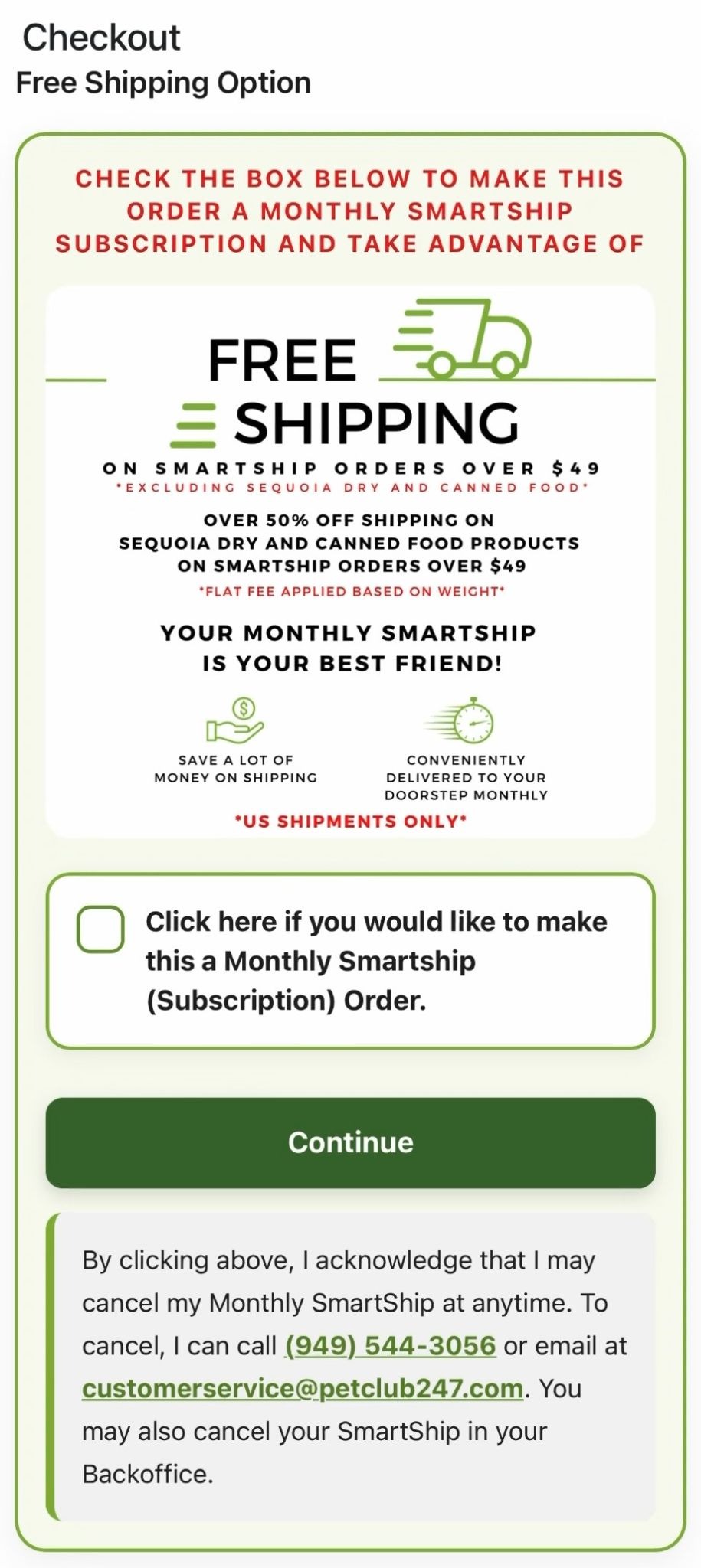
- On the next page (see below), you have the option of making your order into a Smartship order for free shipping* *See page for more details*. If you would like it to be a Smartship (monthly recurring) order, check the box indicating so. Otherwise, just leave it blank and click 'Continue'.
Step 5: Confirm and place order
(Optional) For first-time customers, let us know who you heard about us from by filling out the section “Who referred you to us?” on the checkout page.
- At the checkout page (see below), you can verify your order and select the shipping method by selecting the drop-down under "Shipping Selection" before you place your order. Note: If you select "Pick Up" for your shipping method, you are expected to pick up your order at our location in Simi Valley, CA.
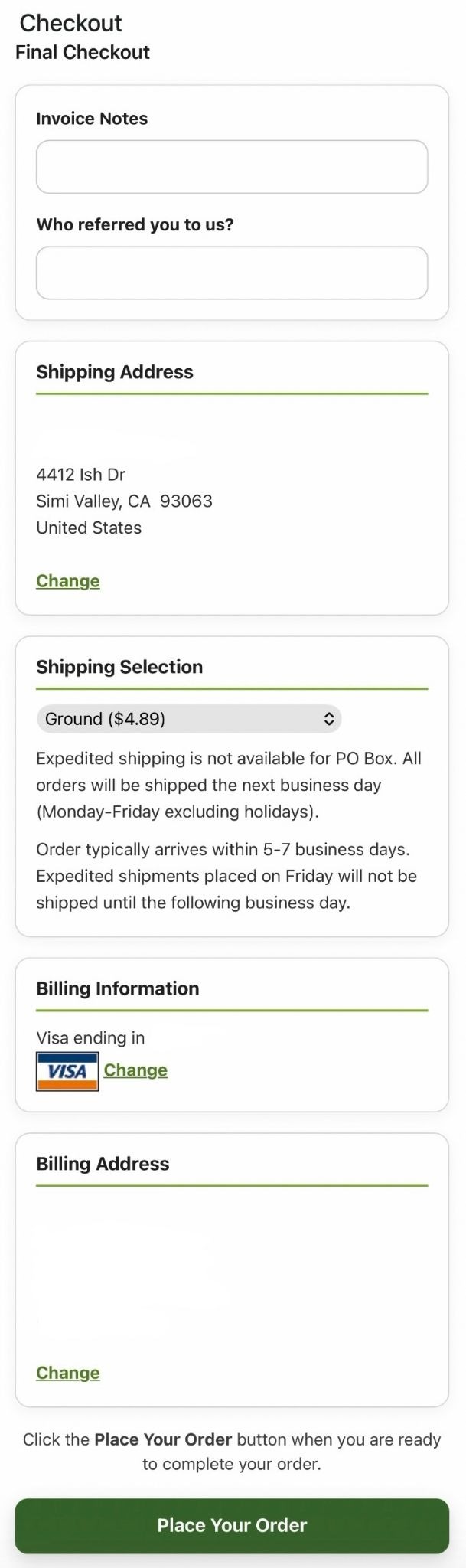
- When you are ready to place your order, tap the "Place Your Order" button. *It may take a minute for the order to process*. Please be patient until the page updates to an order confirmation page with "Congratulations!" at the top of the page. Once you get to the confirmation page, you should also get a confirmation email regarding your order.
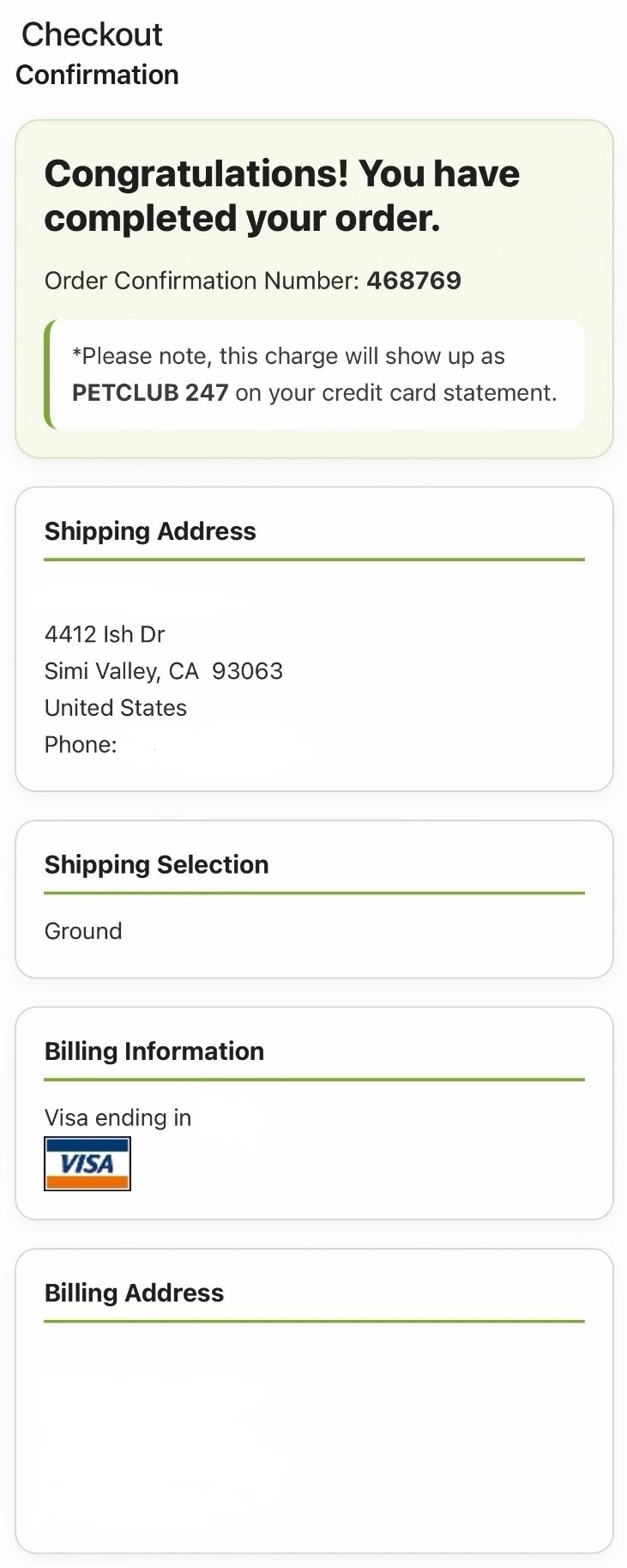
- If there are any issues with your order, the system will point them out to you and ask you to correct them.
If you are still having issues creating your account or getting your order to go through, please contact us by emailing us at [email protected] or you can contact the person who referred you to our site.